
Modern laptops are powerful enough to replace desktop machines for many people. The problem isn’t performance. It’s friction.
You sit down to work and realize you need to connect an external monitor, a mouse, a keyboard, maybe a flash drive or camera. Your laptop has one or two USB-C ports. Suddenly your “portable” setup turns into a chain of adapters and compromises.
This is why USB-C hubs exist. But not all hubs solve the same problem, and many buyers are disappointed because they don’t understand what a hub can and can’t do.
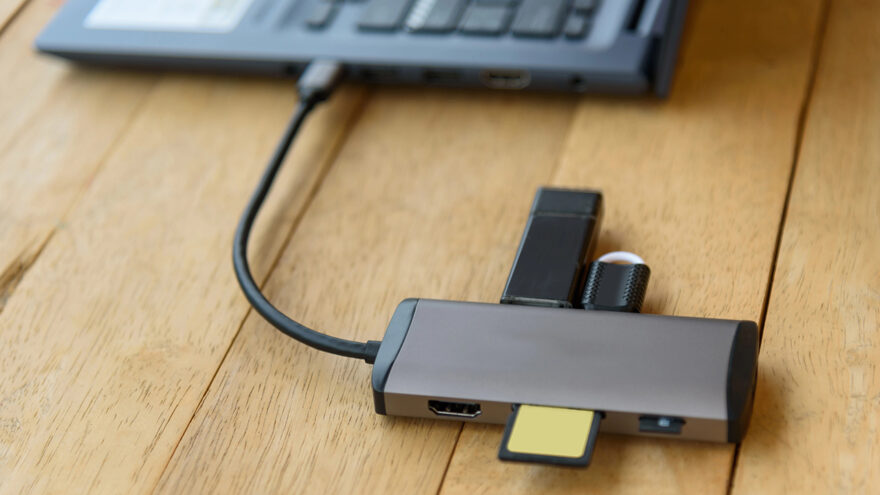
This article explains the USB-C hub category using a compact Anker-style hub with HDMI as a reference point — and, more importantly, helps you decide whether this type of hub fits your workflow at all.
Why USB-C Hubs Became Necessary (So Fast)
Laptop manufacturers didn’t remove ports just to annoy users. USB-C can carry:
- Power
- Data
- Video
- Peripherals
In theory, one port can replace many. In practice, that only works if you add a hub.
The goal of a USB-C hub isn’t to turn your laptop into a desktop workstation. It’s to restore basic functionality that older laptops had built in:
- HDMI or display output
- USB-A ports for existing accessories
- The ability to charge and work at the same time
Understanding that distinction is critical to buying the right product.
The Most Common USB-C Hub Mistake
The single biggest mistake buyers make is assuming:
“If it has HDMI and USB ports, it will work exactly how I expect.”
That assumption causes most frustration.
Before buying any USB-C hub, you need to understand three things about your laptop:
- Whether its USB-C port supports video output
- How much power it needs to charge while in use
- Whether your use case is light productivity or full workstation replacement
Most basic hubs are designed for productivity and convenience, not high-end performance.
What a Compact USB-C Hub Is Actually Designed For
A hub like this Anker model is designed to solve everyday connectivity gaps, not edge cases.
Typical functions include:
- HDMI output for one external display
- USB-A ports for legacy devices (keyboard, mouse, flash drive)
- USB-C data port for accessories
- Optional pass-through charging (depending on charger and laptop)
This is the “I just want my laptop to work like a normal computer again” category.
It is not meant to replace:
- Thunderbolt docks
- Multi-monitor setups
- High-refresh gaming displays
- Professional video editing stations
And that’s okay — as long as expectations are aligned.
External Displays: What HDMI on a Hub Really Means
One of the biggest reasons people buy USB-C hubs is to connect an external monitor.
Here’s what to know.
USB-C Must Support Display Output
Not all USB-C ports are equal. For HDMI to work:
- Your laptop’s USB-C port must support DisplayPort Alt Mode
- The hub must support video output
If your laptop doesn’t support video over USB-C, no hub will fix that.
Resolution vs Refresh Rate
Many hubs advertise “4K support.” That usually means:
- 4K resolution
- Standard refresh rates suitable for productivity
This is great for:
- Office work
- Browsing
- Spreadsheets
- Presentations
It is not the same as:
- High-refresh gaming
- Advanced color-critical editing
- Multi-display daisy chaining
For most people, this limitation never matters. For gamers and creative professionals, it matters a lot.
USB-A Ports: Why They’re Still Important
Despite USB-C becoming more common, USB-A isn’t going away anytime soon.
Many everyday peripherals still rely on USB-A:
- Keyboards
- Mice
- Printers
- Flash drives
- Audio interfaces
- Older external drives
A hub that includes USB-A ports saves you from stacking adapters just to connect basic gear. This is especially useful for:
- Students
- Shared offices
- Travel setups
- Conference rooms
Convenience matters more than cutting-edge specs for most workflows.
Pass-Through Charging: Useful, But Often Misunderstood
Some USB-C hubs support pass-through charging, meaning:
- You plug your charger into the hub
- The hub powers your laptop while also handling peripherals
This sounds simple, but there are caveats.
Charger Wattage Still Matters
If your laptop needs 65W to charge effectively and you use a 45W charger:
- It may charge slowly
- It may only maintain battery level
- It may not charge at all under load
The hub doesn’t create power. It only passes it along.
Power Is Shared
Some power is consumed by:
- The hub itself
- Connected devices
This is normal behavior, not a defect.
For light productivity, pass-through charging works well. For heavier workloads, using a properly rated charger is essential.
Real-World Scenarios Where This Type of Hub Works Well
Mobile Work and Travel
If you work from cafes, coworking spaces, or classrooms:
- One hub replaces multiple adapters
- Setup is fast
- Teardown is simple
This is where compact hubs shine.
Home Office Lite
For a single external monitor, keyboard, and mouse:
- A basic hub is usually enough
- No permanent dock required
- Easy to unplug and take with you
Presentations and Meetings
Conference rooms still rely heavily on HDMI.
A small hub in your bag prevents last-minute scrambling.
Where a Compact USB-C Hub Falls Short
It’s important to say this clearly.
You should not rely on a compact hub if you need:
- Two or more external monitors
- Guaranteed high refresh rates
- Thunderbolt-level bandwidth
- Professional-grade docking reliability
In those cases, a powered Thunderbolt dock is the correct tool — and costs more for good reason.
Buying a small hub for a large problem is how people end up frustrated.
Durability and Build Quality: Why Brand Matters Here
USB-C hubs handle:
- Power delivery
- Data transfer
- Video signals
Poorly built hubs can cause:
- Dropped connections
- Overheating
- Unstable displays
- Charging issues
This is where established brands like Anker tend to earn their reputation. Reliability matters more than shaving a few dollars off the price, especially when a hub sits between your laptop and everything else you connect to it.
Common Buyer Mistakes (And How to Avoid Them)
Mistake 1: Buying based on port count alone
More ports don’t matter if they don’t match your devices.
Mistake 2: Assuming all USB-C ports are the same
Always check your laptop’s specifications.
Mistake 3: Expecting a hub to replace a dock
Hubs and docks solve different problems.
Mistake 4: Ignoring charging requirements
Underpowered chargers cause most “this doesn’t work” complaints.
How to Decide if This Category Fits You
Ask yourself:
- Do I need one external display or several?
- Am I working at a desk or moving frequently?
- Do I value portability more than expandability?
- Am I okay with standard refresh rates?
If your answers lean toward simplicity and mobility, a compact USB-C hub is usually the right choice.
If your answers lean toward performance and permanence, you’re likely better served by a larger dock.
Practical Setup Tips
- Plug the hub directly into the laptop (not through another adapter)
- Use short, quality HDMI cables
- Connect your charger last if troubleshooting
- Avoid stacking hubs or daisy-chaining adapters
- If display flickers, test with a different cable before blaming the hub
Small details make a big difference in stability.
Who Should Skip This Entire Category
You may not need a hub at all if:
- You rarely use external peripherals
- Your workflow is entirely mobile
- You already have a full dock at home
- Your laptop includes all the ports you use daily
Buying gear you don’t need is still friction — just financial instead of technical.
Final Perspective
USB-C hubs exist because laptops became simpler faster than workflows did.
A compact hub like this Anker model is not exciting tech, but it’s useful tech. It restores everyday functionality without committing you to a permanent desk setup or bulky dock.
If your goal is to make your laptop easier to live with — not turn it into a workstation monster — this category of hub is exactly where you should be looking.